Landscape challenges
Record horizontally. Keep three court corners and the full playing-wall area visible throughout your challenge.
See the whole setup
Place the tripod, turn the phone sideways, then check the walls and corners in its preview.
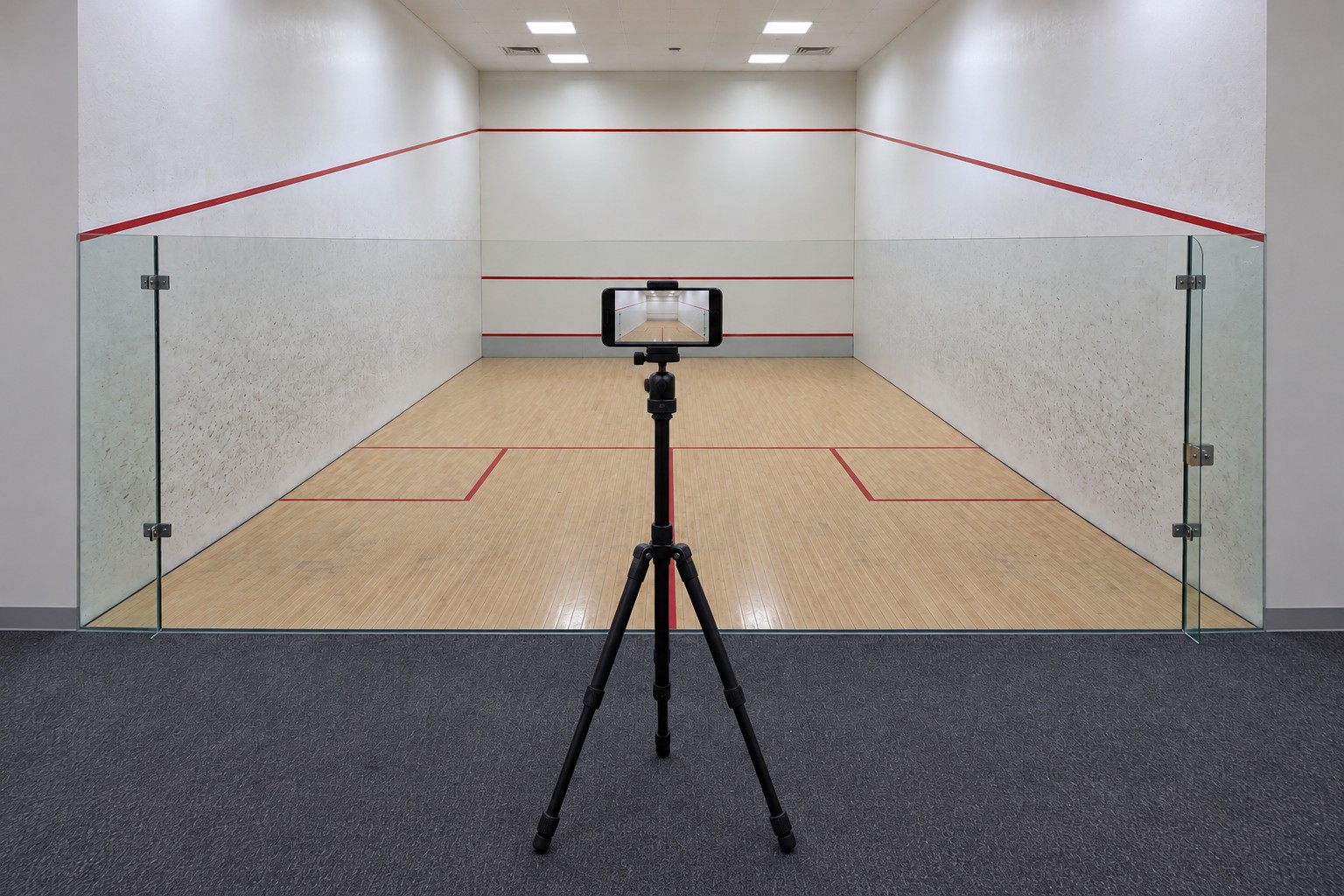
Behind the rear glass. Clear of play.
Place the tripod outside the court, where the centre permits it. Keep its feet clear of the door and walkway. Aim through a clear glass panel towards the front wall.
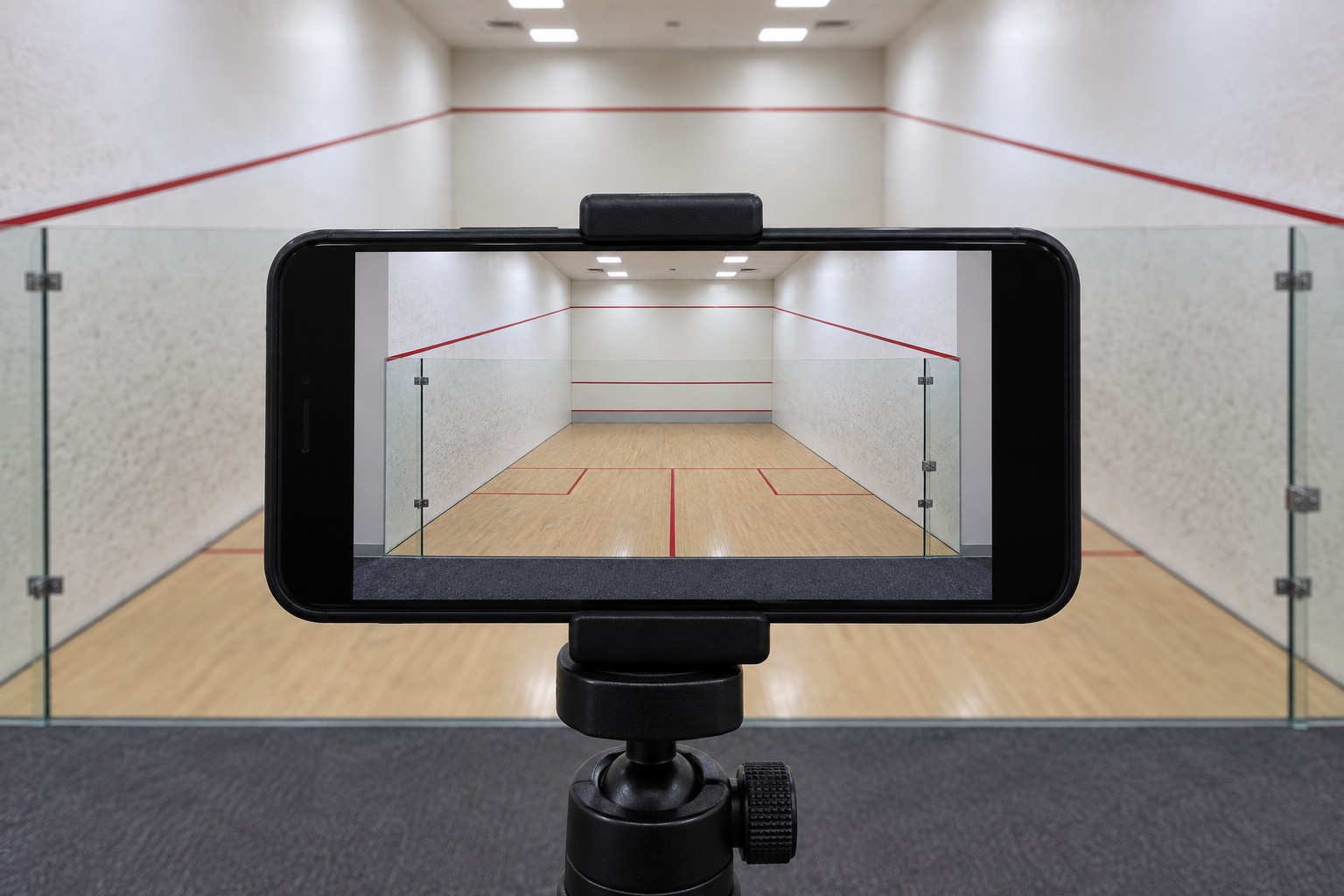
Mount horizontally for this challenge.
Turn the phone sideways before mounting it. Keep the rear lens uncovered, tighten the clamp and tripod head, and check that the picture is level.
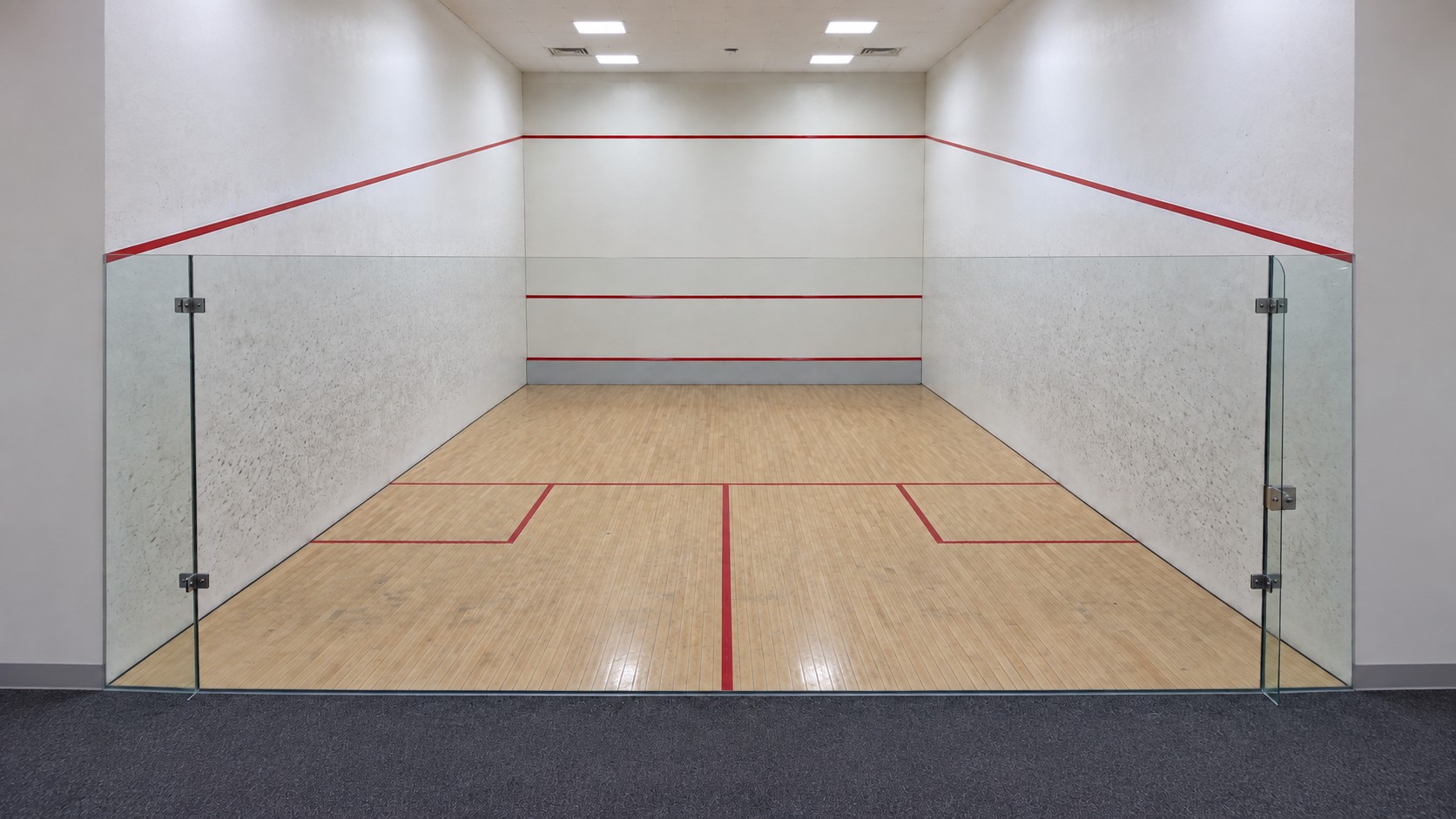
Keep the whole marked area in view.
Include the upper out line across the front and both side walls, the front-wall service line and the lower tin line. The white playing-wall area between those boundaries must stay visible throughout the challenge.
Three corners, for the whole recording.
1 · Front left. 2 · Front right. 3 · Rear right. Keep both front floor corners and at least one rear floor corner visible, with some room around each one.
Landscape orientation. Three visible court corners. The full playing-wall area and its red lines. Keep all three checks satisfied throughout the recording, not only before the player starts moving.
Orientation
Record landscape squash challenges horizontally. Rotate the phone before you mount it and keep it that way for the entire recording.
Place the tripod
- Start outside the rear glassUse a position approved by the centre. The tripod belongs outside the playing area, clear of the door opening and foot traffic. Aim into the court through a clear panel.
- Fit the walls and the floor togetherAdjust the distance and height until the upper red boundaries, lower tin line and at least three floor corners all fit. Do not tilt up so far that a rear corner disappears, or down so far that the upper out line is cropped.
- Check the glass and its fittingsAvoid placing the lens directly behind a door handle, hinge, thick seam or frame. Check the actual phone preview for reflections over the court markings.
- Lock the whole setupSpread and lock all three legs. Clamp the phone horizontally, keep its camera uncovered, and tighten the head. Check the frame again after tightening.
Court access and glass layouts vary. The final position is the one that keeps the required corners, lines and playing area visible while the tripod stays outside play.
Check the corners and lines
Check the full court view in the phone’s landscape preview before starting the challenge.
Both front floor corners and at least one rear floor corner must remain in view. These are the junctions where two walls meet the floor. Leave a margin around them.
Follow the red out line up one side wall, across the front wall and down the other side. Keep the whole upper boundary of the playing-wall area in frame.
Include the service line across the front wall and the lower red line at the top of the tin. The white wall between the upper boundary and the tin must not be cropped.
Keep the camera fixed and leave room for the player’s movement and racket. Check a practice sequence that reaches the front and back of the court; keep the required corners and wall boundaries in the picture throughout.
The top red line is cropped
Adjust the height, angle or distance to include it. Recheck the floor corners after every adjustment.
A rear corner is missing
Move back where space permits and widen the view. You need a rear floor corner as well as both front corners.
Glass hides the markings
Move the camera away from fittings or strong reflections, then repeat the corners-and-lines check in the preview.
The frame changes during play
Lock the tripod and phone mount before starting. Do not pan, zoom or rotate the phone to follow the ball.
Before you record
A final look at the screen
- The phone is horizontal, in landscape mode.
- Both front floor corners and at least one rear floor corner are visible.
- The upper red boundaries, front service line and lower tin line are visible.
- The full white playing-wall area is in frame.
- The player has room to move and swing, and the tripod is fixed outside the court.
Record and submit your own challenge
One account belongs to one competitor. Record and submit only your own challenge videos using your own account. Do not share accounts or submit another person’s video.
Keep the same frame throughout
Record the challenge continuously with the phone fixed in place. Keep three corners and the required lines visible for the whole recording.
Questions
Can I share a tripod with another competitor?
Yes, you can share the tripod. Each person must use their own account to record and submit only their own challenge videos. One account belongs to one competitor and must not be shared. Recheck the court framing before recording your own challenge.
Which orientation does my squash challenge use?
Squash has portrait and landscape challenges. This guide covers landscape challenges with a full court view. For challenges played on one side, use the portrait guide.
Which three corners should I include?
Include both front floor corners and at least one rear floor corner, where two walls meet the floor. Keep all three inside the picture for the whole recording, with a little space around them.
Which red lines and wall area need to be visible?
Keep the upper out boundary across the front and both side walls, the front-wall service line and the lower tin line visible. Include the full white playing-wall area between the upper boundary and the tin, as well as the required court corners.
Can the tripod go inside the court?
Use the setup shown here outside the rear glass, away from the door and walkway. Keep equipment out of the playing area and follow the centre’s instructions for camera placement.
What if reflections or glass fittings cover a corner?
Adjust the position until the required corner and lines are clearly visible in the phone’s preview. Check again after locking the mount, and before the challenge starts.
Can I turn or move the camera during the challenge?
Keep the phone horizontal and fixed for the whole recording. Set a wide enough frame before you start so the corners, wall boundaries and player’s movement stay in view.
Send us the frame
Send a screenshot of your camera preview to support@futureofsports.io so we can help check the corners and court boundaries.